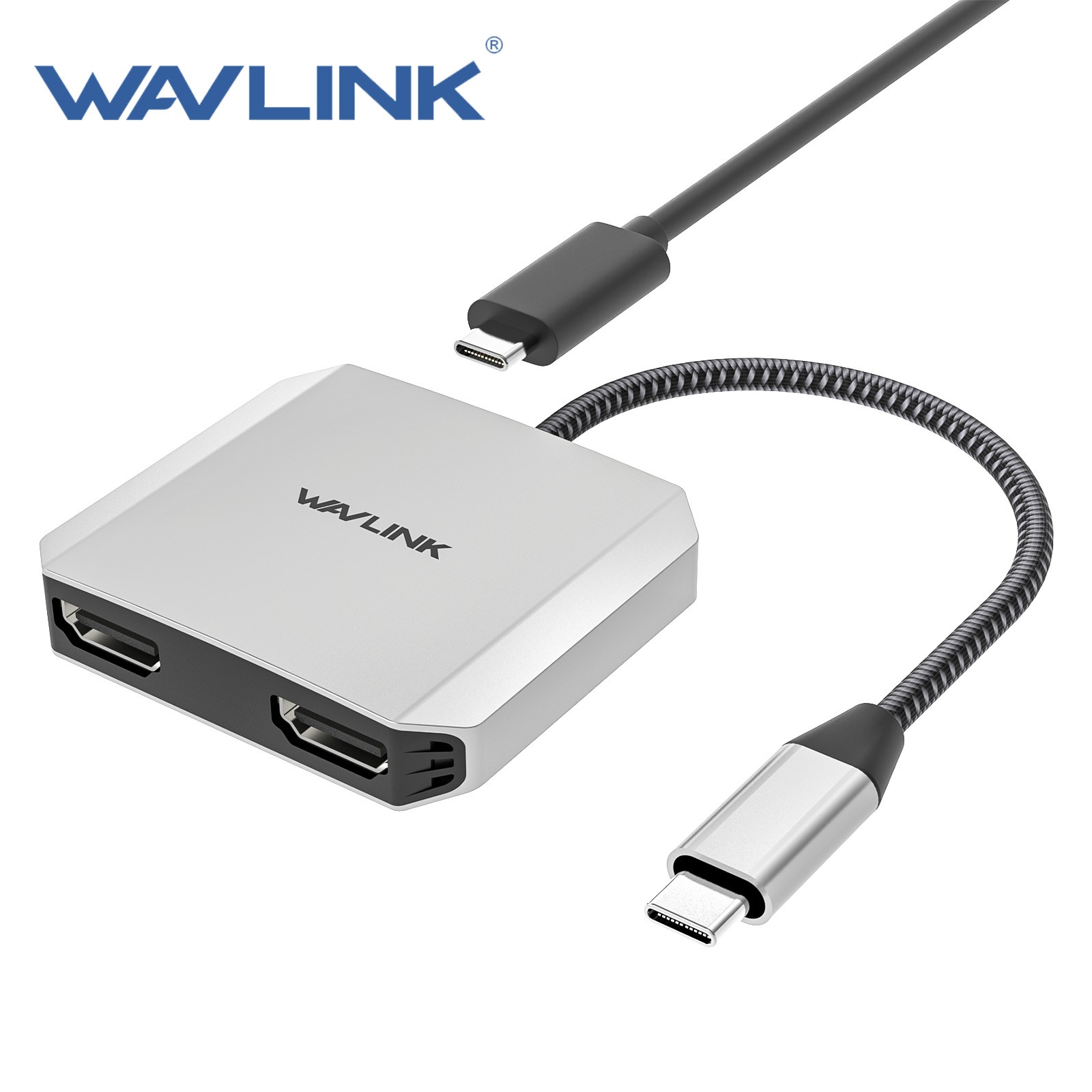
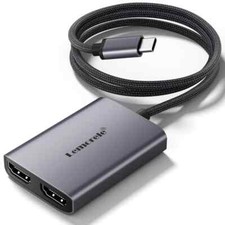
WAVLINK USB C to Dual HDMI Adapter, 4K@60Hz Type C to HDMI Converter for MacBook Pro/MacBook Air, iPad Pro, Dell, HP, Samsung Galaxy, Huawei Mate 30/P30/Pro, Xiaomi, Lenovo, ASUS Zenbook, OPPO
[4K Display] Via the HDMI port, the resolution of the external display is up to 4K*2K. Connect to the TV/projector and ensure that the connected HDMI channel matches the set device channel.
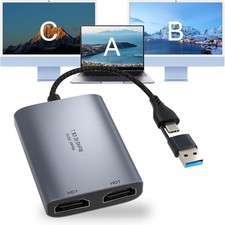
[Dual Display] With the USB C to 2 HDMI adapter, you can display the content of your laptop on 2 monitors simultaneously, up to 4K at 30Hz. Whether you are a call center supervisor, data analyst, or office manager who uses two monitors at work, this can elevate your work efficiency to a higher level.
[Mirror and Extend Mode] The Type C HDMI adapter is a good choice for Windows users as it supports three different modes under Windows. You can mirror your laptop or extend the screen to two identical or different external displays (AAA, ABB, ABC), while under Mac OS, due to Mac OS limitations, split screen is not allowed (only supports AAA and ABB). Tablets/Phones can only mirror one screen.
[Plug and Play] Multi-Stream Transport offers easy setup by natively working on a device that supports DP Alt-Mode over USB Type C. And provides plug-and-play installation without drivers or software.
[Compatibility]: The device requires USB 3.1 protocol, USB C port, and DP+++ protocol. Compatible with: MacBook Air 2018/2019/2020, MacBook Pro 2016/2017/2018/2019, iPad Pro 2018/2020; Microsoft Surface Book2, Surface Go, Go2, Pro7, ProX, Laptop 3; ASUS Zenbook; Samsung S8, Galaxy Note9/Note10/S8+/9/10; Huawei P40/P40 Pro/P30/Mate 30/Mate 30 Pro; Huawei Matebook14/13/X, Honor Magicbook, Lenovo Legion/YOGA/ThinkPad; Dell Inspiron/XPS13. For more information, please see the description below
WAVLINK USB-C to Dual HDMI Display Adapter
With the Wavlink USB-C MST hub to 2x HDMI ports, you can connect two displays to a USB-C or Thunderbolt 3-capable laptop, ultrabook, or PC. Configure these added monitors as you wish. Transmit high-quality video and audio for presentations, conferences, workshops, training, or gaming.
Dual 4K Display
Extend or mirror content on two displays at high resolutions up to 4K@30Hz or stream 4K@60Hz video on a single monitor. Please note that your host device must support DP 1.4 to display 4K@60Hz.
Plug and Play
Connect to your device and use it immediately, no installation required.
Lightweight and Compact
This dual HDMI adapter weighs only 43g and is only 0.39 inches thick. It offers effortless mobility.
This dual HDMI to USB C adapter ONLY works with devices whose USB Type-C port supports video output or DP Alt Mode.
Before you buy it, please note:
1. Please check whether your laptop has a USB Type-C port or a Thunderbolt 3 port, and supports DisplayPort Alternate Mode.
2. On Mac devices that ONLY support mirror mode, two different screens CANNOT be extended due to Mac OS limitations.
Dual Video Resolution Configurations:
1 display 3840x2160@60Hz = 2 displays/3840x2160@30Hz = 2 displays/2560x1440@60Hz = 2 displays/1920x1080@60Hz = 2 displays
ONLY Mac OS supports mirror mode:
Does not support 2 external displays showing different images for Apple computers in extend mode.
Supports Windows 10 OS:
Mirror mode: The image on 3 screens is the same.
Extend mode: The image on 2 external monitors can be the same or different.
Supports Android OS:
The image on 3 screens is the same.
Compatible Devices:
*MacBook 12 inches, MacBook Air 2018/2019/2020, MacBook Pro 2016/2017/2018/2019, iPad Pro 2018/2020
*Microsoft Surface Book2, Surface Go, Go2, Pro7, ProX, Laptop 3
*ASUS Zenbook3, Zenbook3 Pro, ZenbookX series, U4100UN, U5100UQ, ROG series
*HP OMEN4 Pro, Elitebook 1050 G1, Elitebook Folio G1
*Lumia 950/950XL
*OPPO R17 Pro
*LG G5, G9, V30, V35, V40
*SONY Xperia 1, Xperia 5
*Mi Air12.5/13.3, Pro15 (enhanced version)
*Samsung S8, Galaxy Note9/Note10/S8+/9/10
*Huawei P40/P40 Pro/P30/P30 Pro/P20/P20 Pro/Mate 30/Mate 30 Pro/Mate 20/Mate 20 Pro/Mate 20 X/Mate 10/10 Pro
*Lenovo Legion Y7000/Y7000P/Y9000K, YOGA6 Pro, ThinkPad X1 Carbon/Yoga
*Dell G3/G5/G7 series, Inspiron 5000/7000, XPS13, XPS15
If your laptop is not listed, please let us know. We will be happy to check if the adapter works with your device.
FAQ:
How do I switch a Mac device to extend mode?
"Settings" → "Display" → Click on the "Mirror Display" box to switch to extend mode. → You can then drag a window with a website/movie to the right side of your desktop screen until it disappears from your desktop screen and appears on the external monitor screen.
(Important note: Due to Apple's own limitations, the image on the two external screens is identical for Mac OS devices used in extend mode.)
How do I connect extend mode for Windows?
Right-click on Desktop → Select Intel Display Settings → Popup settings. Screen Select Display → Select Multi-Display → Extend the desktop.
(If Display 3 is not shown, please manually select the display → click "Apply". "Confirm" can set OK.)
If one of the displays does not show up, how to proceed?
Right-click on Desktop > Graphics Settings > Select one or more active displays."