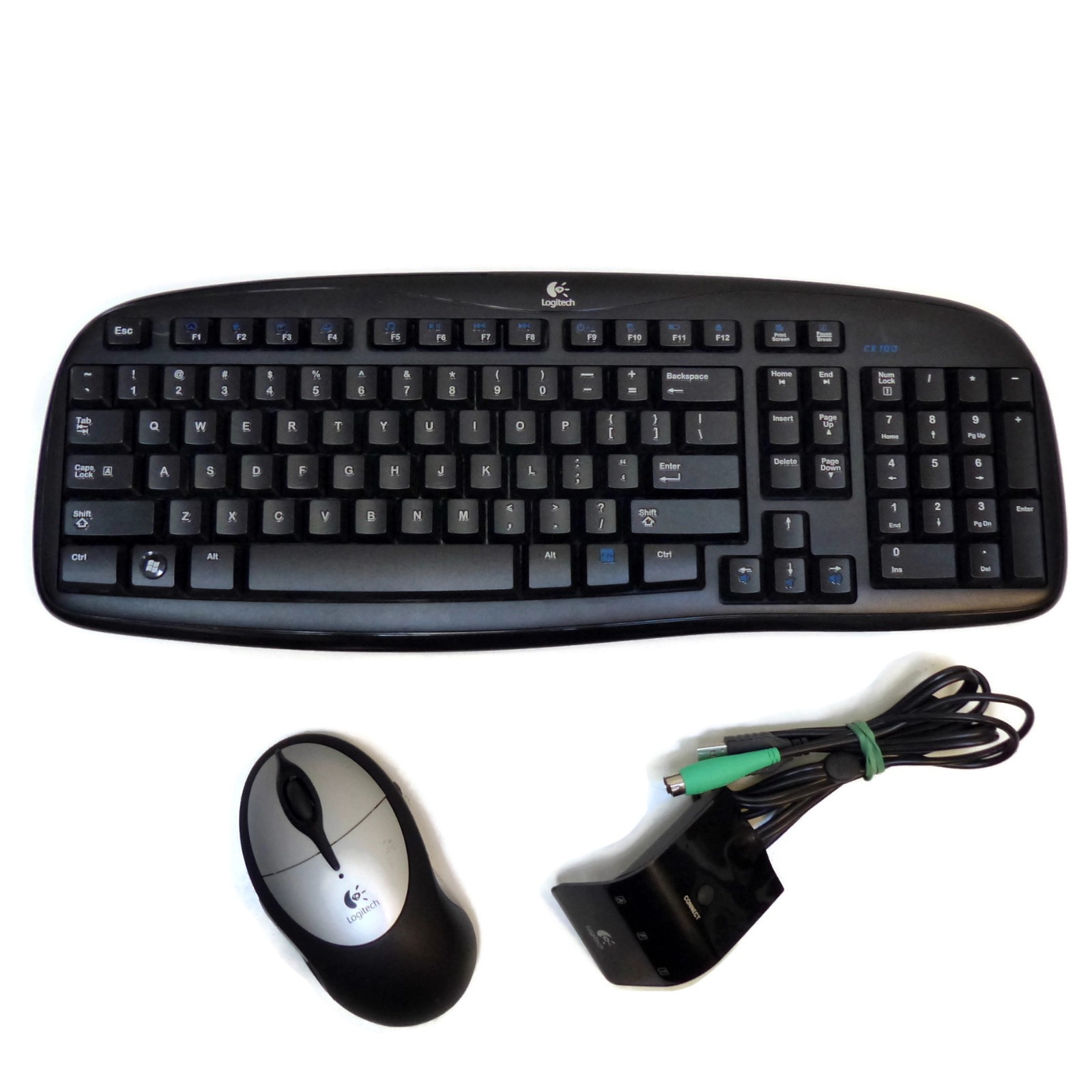
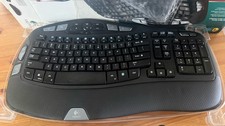
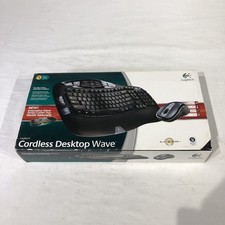
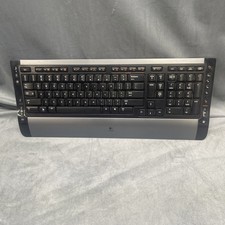
This Logitech wireless combo consists of an EX100 multi-function keyboard, a 5-button a Logitech Cordless Rechargeable Mouse M-RAK89D, and a Logitech wireless receiver Nano Unifying USB receiver. The keyboard and mouse are in very good used condition, and are very clean (see photos). Note that the recharger base for the mouse isn't included. It isn't needed, because the mouse works just as well on normal batteries or on externally recharged batteries. The receiver can control both the mouse and keyboard at the same time. The combo has been thoroughly tested on a Windows 11 64-bit laptop and a Windows 10 64-bit desktop.The mouse and keyboard can be used with Windows XP through Windows 11 without special drivers, but you'll want to download the Logitech SetPoint Software because it lets you customize the mouse and keyboard and provides fuller functionality for the keyboard's special keys. Just search for "logitech EX100 download" - the support page link for it will be at or near the top of the search results. Follow that link for the Getting Started Guide, Specifications, and Downloads (SetPoint).Four batteries are included: the mouse uses two AA batteries and the keyboard uses two AAA batteries.Installation instructions: Install Logitech SetPoint after downloading it. Plug the USB receiver into an available USB port, then wait a moment for it to be sensed and installed. Press the connect button on the receiver, then press the red connect button on the bottom of the keyboard. Repeat this procedure for the mouse. SetPoint will allow you to customize settings for your mouse and/or keyboard. If you don't use your keyboard/mouse with a particular computer for a while, you may need to go through this sequence again to re-establish the pairing with the computer.Mouse functions: Left click, right click, scroll, middle button (scroll wheel) click, left and right scroll tilt, back and forward thumb buttons on left side of mouse. Note that the default assignment under SetPoint for the scroll wheel (middle button) click is magnify. You may change that via SetPoint if you prefer that they be something else, such as autoscroll.The EX100 keyboard's special keys have been tested under Windows 10 and 11, where they operate as follows (all can be changed via Logitech SetPoint). Note that the F1 - F12 keys operate as normal function keys when pressed by themselves; press and hold the blue "FN" key while pressing a function key to get the special function assigned to that key.- FN + F1 Opens your default browser.
- FN + F2 Opens your default MInstant Messenger app, if you have one; you may use it to open any other application via SetPoint.
- FN + F3 Opens email application (Outlook or Microsoft Mail by default, but can be changed via SetPoint) .
- FN + F4 Opens your favorite search engine and submits any highlighted text to it. Upon first use, you will be prompted to select a search engine.
- FN + F5 In Windows 10, opens Windows Media Player. In Windows 11, it will say "No remote media players are installed", but you can assign any program to it via SetPoint.
- FN + F6 Pause/play, works with any media player program.
- FN + F7 Next; works with any media player program.
- FN + F8 Previous; works with any media player program.
- FN + F9 Puts computer to sleep.
- FN + F10 Opens Windows calculator.
- FN + F11 Battery Status - had no effect, but it can be re-assigned with SetPoint.
- FN + F12 Eject; works with any CD/DVD/Blu-Ray player.
- FN + Print Screen Opens context (right click) menu.
- FN + Pause/Break Sets Scroll Lock On/Off.
- FN + Down Arrow Performs mute/unmute.
- FN + Left Arrow Performs decrease volume.
- FN + Right Arrow Performs increase volume.
"Delivery" date is 's estimate and depends on carrier. Measurements are approximate tothe best of our ability. Colours vary on different monitors/devices. Ourpremises are smoke-free.