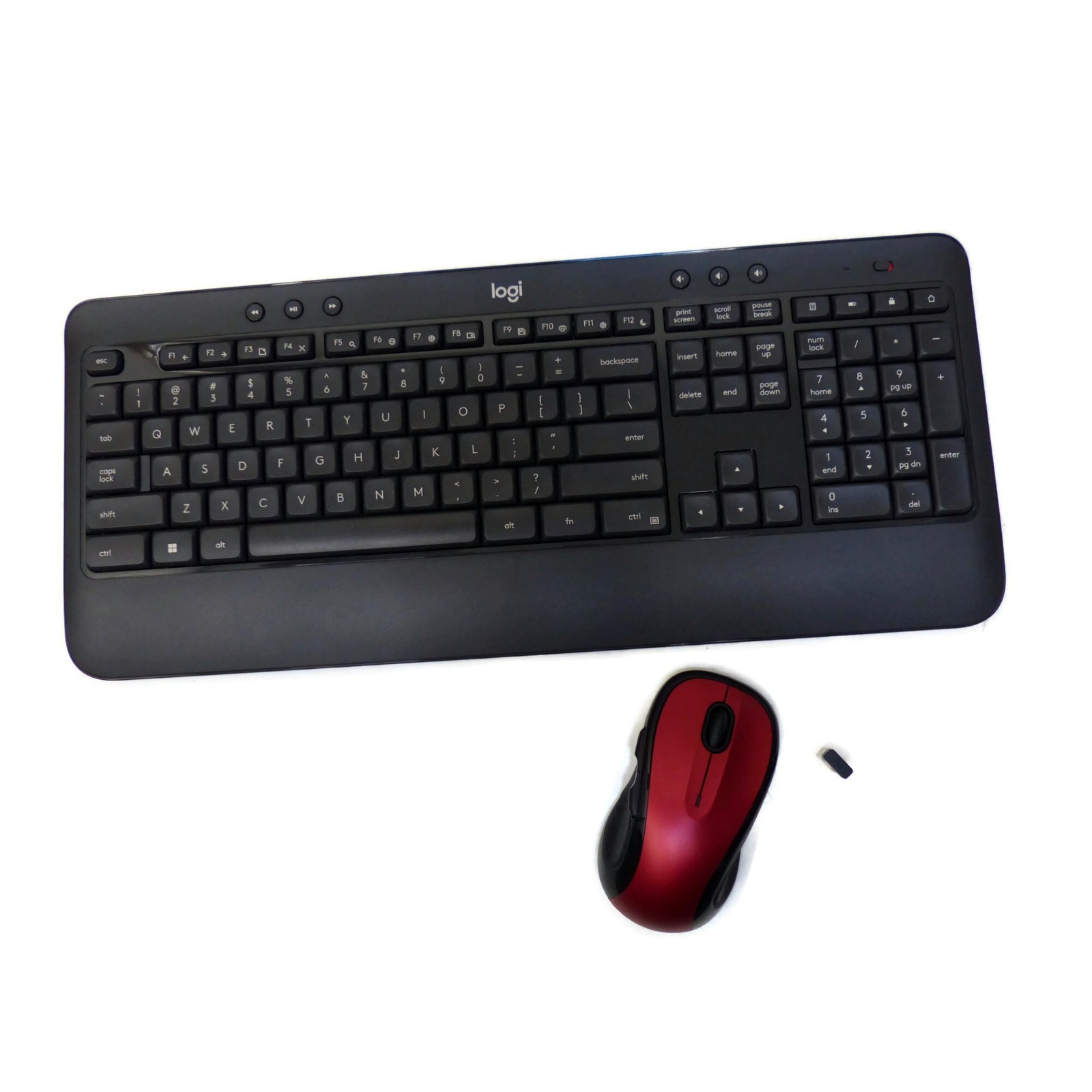
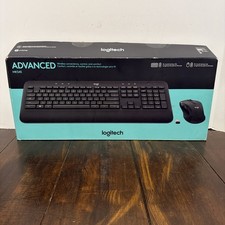
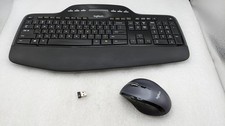
This Logitech MK545 Advanced Wireless Combo consists of a Logitech K540 Keyboard (M/N Y-R0012A), the newest version of the Logitech M510 wireless mouse (M/N M-R0056) and a Logitech Nano USB Unifying Receiver. The keyboard is in excellent used condition and very clean, with virtually no signs of use. The keys and key decals have no wear spots and the wrist rest is similarly spotless. The mouse is also in very good used condition, and is an upgrade over the M310 mouse that comes with the similar MK540 combo. All keys, buttons and functions of the keyboard and mouse have been tested on a Windows 11 64-bit laptop.The keyboard and mouse can be used with Windows 7 through Windows 11 without special drivers, but the Logitech Options+ Software will let you customize the keyboard and mouse and provides fuller functionality for the keyboard's special keys.4 AA batteries are included (2 for the keyboard and two for the mouse).A Getting Started Guide may be downloaded from the MK545 support page. You can find the support page by Googling "Logitech MK545 support"; the page will be at or near the top of the search results. The download page is missing a link for downloading the Options+ software. However, the FAQ link on the main support page has an entry titled "Customize the MK545 keyboard or mouse with Logitech Options", which gives the download link. If you wish to find out more about the M510 mouse, you can find the support page for it by Googling "Logitech M510 support".Installation instructions: Install the Options+ program (which contains the Unifying software) after downloading it. Plug the USB receiver into an available USB port, then wait a moment for it to be sensed and installed. Turn on the keyboard. It may be recognized by the receiver and paired automatically. If it isn't recognized automatically, run the Unifying Software, which will guide you through the steps of getting your keyboard connected and ready for use. Repeat for connecting the mouse. Options+ will allow you to customize keyboard and mouse settings. If you don't use your keyboard or mouse with a particular computer for a while, you may need to run the Unifying Software again to re-establish the pairing with the computer.The keyboard's special keys have been tested under Windows 11. F1 - F8, where they operate as follows (all can be changed via Options+). Note that the F1 - F12 keys operate as special function keys when pressed by themselves; press and hold the "fn" key while pressing a function key to get the normal F1 - F12 keys. This behavior can be changed via Options+.- Media control keys work with most media players (tested with VLC Media Player)
- Volume control and mute keys work with any audio source
- Start menu key works
- F1 performs the "back" function in browsers and other programs that support this function
- F2 performs the "forward" function in browsers and other programs that support this function
- F3 opens a new tab in browsers (tested with Chrome, Firefox and Edge)
- F4 closes the active window (works with any program)
- F5 opens Windows Search
- F6 does zoom out (if zooming is supported in the active application)
- F7 does zoom in (if zooming is supported in the active application)
- F8 shows the desktop (minimizes all open windows)
- F9 saves, if the active program supports saving to a file
- F10 prints, if the active program supports printing
- F11 opens Windows Settings
- F12 puts the computer to sleep
- Calculator key opens Windows Calculator
- Battery key flashes green if battery level is OK
- Lock key locks the computer
- Home page key does nothing in Windows 11; you may assign an operation to it with Options+Additionally, you may use Options+ to disable any of the following keys: Num Lock, Caps Lock, Scroll Local, Insert, or the Windows Start key.The M510 mouse has 6 buttons which provide the following functions: Left click, right click, scroll wheel (middle button) click, scroll wheel left tilt and right tilt, back and forward thumb buttons on upper left side.No added drivers are necessary for using basic mouse functions in Windows. However, the thumb buttons (back and forward) might not work in some programs without downloading and installing the Options+ software. Options+ allows the default function of any button to be changed."Delivery" date is 's estimate and depends on carrier. Measurements are approximate to the best of our ability. Colours vary on different monitors/devices. Our premises are smoke-free.