OPENBSD LINUXOS
LATEST BUILDS CHECK DROPDOWN
PERFECT FOR OLD & NEW DEVICES!
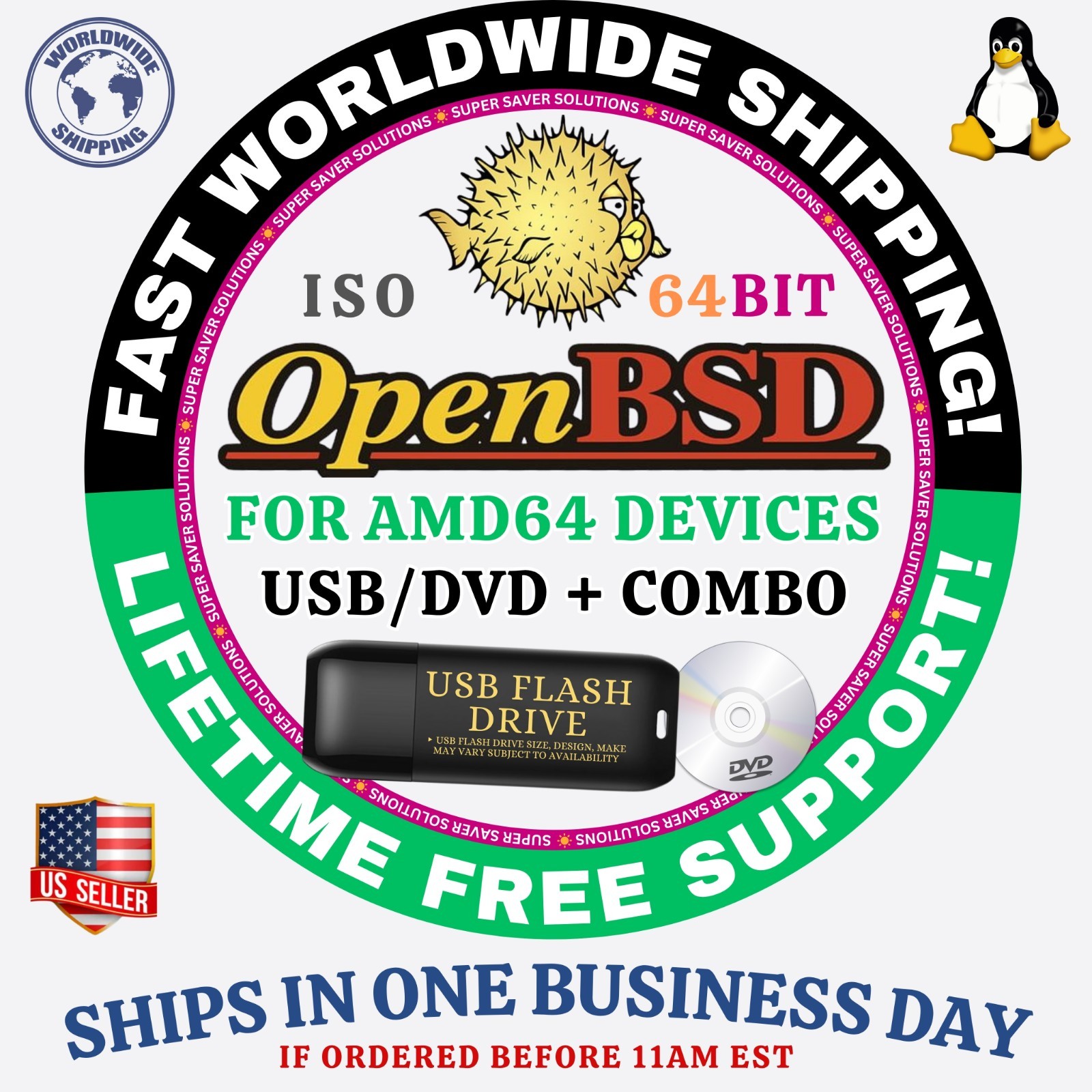
64-Bit(Live Boot, Full Installation)Brand New Bootable USB & DVD Drive
🙂 GIVE A NEW LEASE OF LIFE TO YOUR DEVICE!
What is OPENBSD LinuxOS?OpenBSD is a secure, open-source, Unix-like operating system known for its emphasis on code correctness, cryptographic integration, and proactive security. Developed by the OpenBSD Project, it is based on BSD (Berkeley Software Distribution) and runs on many hardware platforms. OpenBSD includes powerful tools like the PF firewall, OpenSSH (which it created), and other security-focused software. Its development philosophy prioritizes simplicity, auditing, and correctness, often serving as the gold standard for secure system design. With frequent releases and excellent documentation, OpenBSD is favored in security-critical environments such as firewalls, routers, and servers where stability and safety are paramount.
BUILD VERSIONFOR AMD64 DEVICES, FOR ARM64 DEVICES, FOR I386 DEVICES, FOR OCTEON DEVICES, FOR POWERPC64 DEVICES, FOR RISCV64 DEVICES, FOR SPARC64 DEVICES
MEDIA TYPEBOOTABLE DVD, BOOTABLE USB, USB + DVD COMBOGive it a try. You’ll Love it!⭐️ How to Boot Linux OS from USB?✅ Steps for Windows PC & Chromebooks
Follow these easy steps:
- Turn-off your computer
- Insert the USB into any available USB port
- Switch on your computer
- Press the key that allows your computer to boot to an alternate device (ESC on many HPs, F12 on many Dells, F8 on many custom builds, yours may vary, see your computer's documentation)
- At the Book-up screen, select Boot from USB Interface option, press enter.
- Follow on-screen links for initiate OS.
- Wait for system to boot into LinuxOS.
- That's it! Enjoy!
✅Step for Apple Macs Devices
Follow these easy steps:
- Turn-off your computer
- Insert the USB into any available USB port
- Switch on your computer
- Press the Option keyon your keyboard to go the boot menu
- Select EFI Book
- Follow on-screen links for initiate OS.
- Wait for system to boot into Linux OS.
- That's it! Enjoy!
⭐️LOOK AT MY AWESOME response, BUY WITH 100% CONFIDENCE!