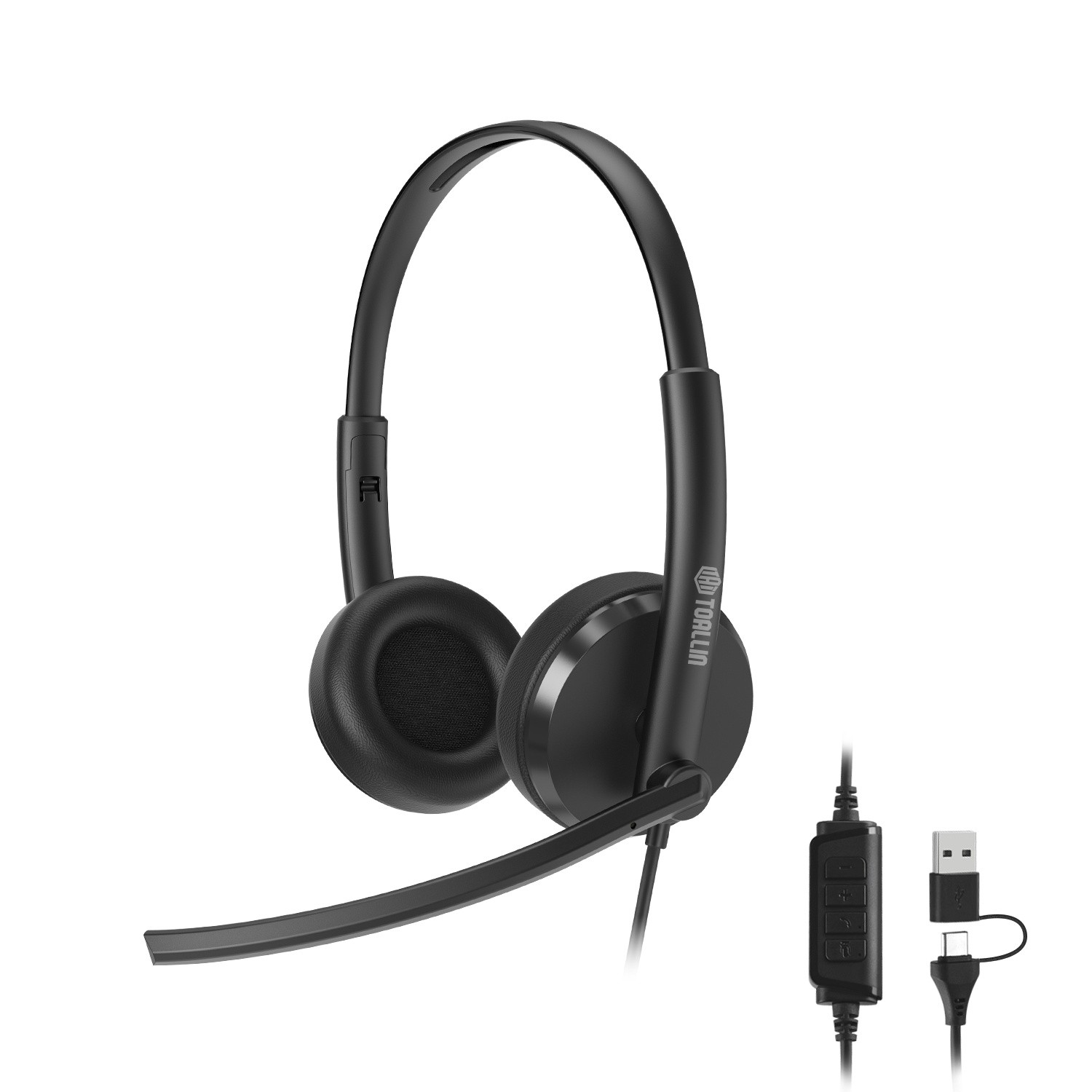
The TOALLIN USB Wired Headset features dual-microphone noise-canceling technology to ensure clear, distortion-free voice calls and online meetings. With its plug-and-play design, it connects directly to desktop computers, laptops, Macs, and Chromebooks—no driver installation required.It’s perfect for Zoom, Teams, online classes, remote work, gaming voice chat, and customer service. The lightweight, over-ear design with soft ear cushions ensures comfort even during extended use.The stable USB wired connection delivers low-latency, reliable performance without the hassle of battery concerns. It’s the ideal choice for working from home, studying, and professional communication.Includes: USB headset ×1, user guide ×1.
The TOALLIN USB Wired Headphones Feature Dual-Microphone Noise-CancelingTechnology,
Ensuring Clearer Audio Quality for Phone calls and Online Meetings
💡Key Advantages
📣 Dual Microphones for Clear Calls
Effectively reduces background noise and focuses on your voice, making online communication smoother.
📣 40mm Large-Diameter Drivers and Stereo Sound
Equipped with dual 40mm speakers, it delivers powerful stereo sound with crisp highs and deep bass.
📣 Remote Control Features—Volume Control, One-Touch Mute, and Answering Calls
With the remote control features, you can easily adjust the volume, mute instantly with a single button press, and answer or end calls without touching your computer or phone.
📣 Simple USB Plug-and-Play
No setup required. Just plug it into your computer or laptop, and it’s ready to use right away.
📣 The Ideal Choice for Remote Work and Learning
Especially suitable for:
- Online courses
- Zoom/Teams meetings
- Work-from-home environments
- Customer support roles
📣 Comfortable Design
Soft ear cushions and an adjustable headband make them comfortable for extended use.
⭐ Why Choose These Headphones
- Stable wired USB connection
- Clear voice pickup
- Easy setup
- Ideal for everyday professional use
🚩 Package Contents
- 1 × USB Headphones
- 1 × User Manual
Note1: This product is not waterproof.
Note2: Usage Restrictions: Do not wear while sleeping (risk of entanglement). When using while driving or riding a bike, be sure to pay attention to your surroundings.
Frequently Asked Questions (FAQ)
Question 1: No sound after plugging in the device?
Troubleshooting Steps: “Headphones” (not speakers)
Make sure the audio plug is fully inserted into the device.
Check that the device’s volume is turned on and that the output mode is set to
Try testing with another device to rule out interface compatibility issues.
Question 2: The person on the other end of the call can’t hear me (microphone malfunction)?
Solution: Adjust the microphone stand so that the microphone is 2–5 centimeters away from your mouth. Check to see if the microphone is muted (some models have a physical mute switch). Use a soft-bristled brush to remove dust from the microphone grille.
Question 3: Is the remote control button not working?
Solution: Please check compatibility with your device’s operating system (iOS/Android/Windows/macOS).
For computers: Please install the driver from our official website to enable the remote control function.
Question4: Do you experience any discomfort in your ears during prolonged use?
Recommendations: Adjust the headband length and the angle of the ear cups to reduce pressure.
Take a 5-minute break after every hour of continuous use.
Question5:Are you experiencing intermittent audio interruptions due to damaged cables?
Prevention and Troubleshooting: Avoid tangling or putting pressure on the cables. If you hear static: Clean oxidized connectors with an eraser.
Question6:Why is there no sound from either the microphone or the speaker during a call?
These headphones have not yet been selected as input and output devices in the Teams app. Setup instructions: Settings & More > Settings > Devices > Audio Settings > Set them as both a speaker and a microphone.